
Setup
Set up Sala IPTV
Three steps, with any Xtream or M3U service.
Sala is coming to the LG and Samsung stores. On a TV, these steps apply once it is listed. On Windows and Mac you can start today.
-
Install Sala
On a TV, find Sala IPTV in the TV's app store and install it. On Windows or Mac, download it from the front page.
-
Open it
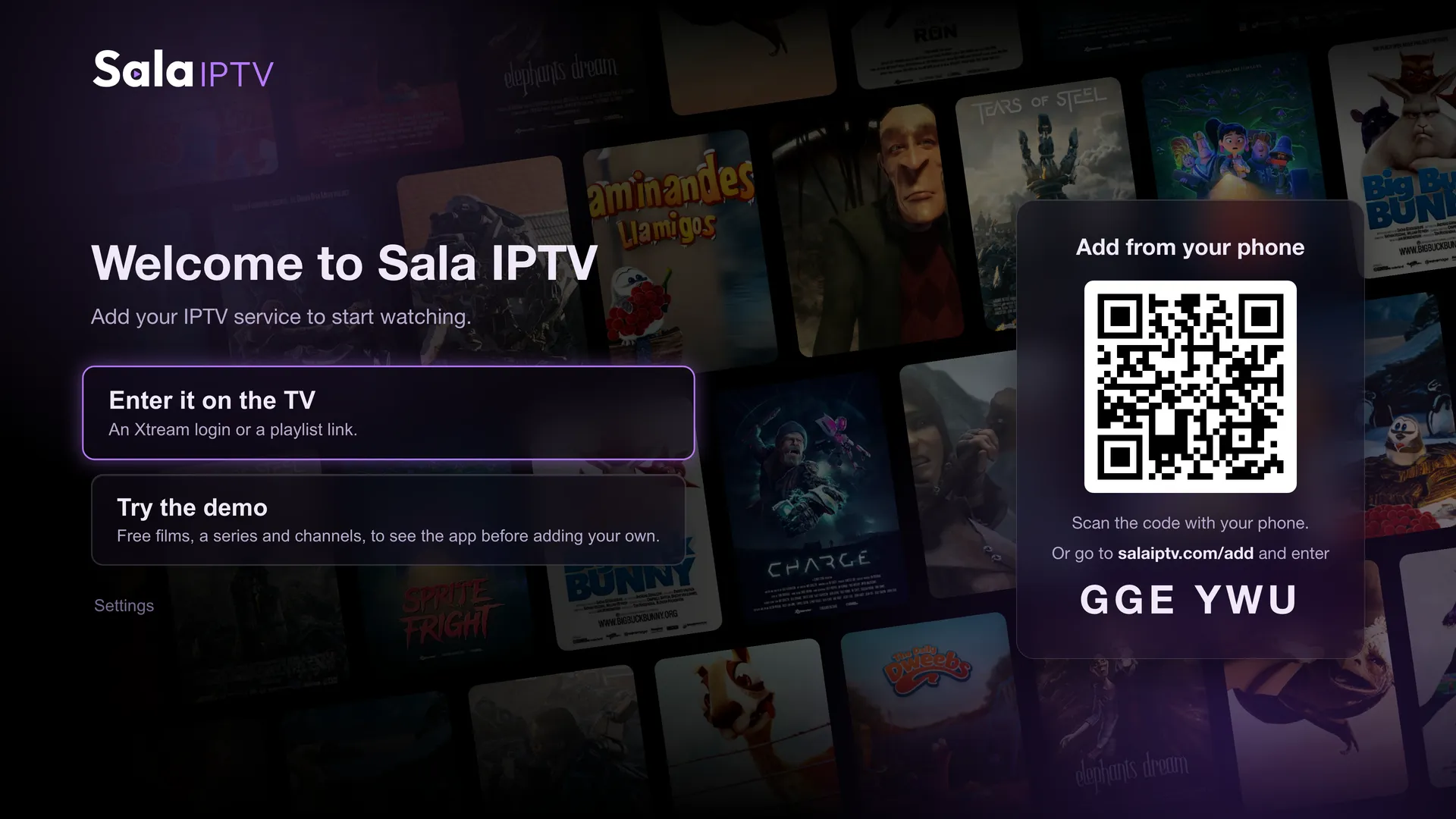
The first time, Sala opens on its welcome screen. Choose “Enter it on the TV”, or leave it open to send the details from your phone.
-
Add your playlist
Use what your service gave you: the server address, username and password of an Xtream login, or an M3U link.
Type it in with the remote, or send it from your phone at salaiptv.com/add.
What you need
- An IPTV service of your own, with an Xtream login or an M3U playlist link.
- The right to watch what it offers.
- A TV, computer or browser that Sala runs on. See your screen below.
From your phone
Typing a long password with a remote is slow. Sala's first screen shows a code and a QR code. Scan it, or open salaiptv.com/add on your phone, enter the code, then the login.
The login is encrypted on your phone and only your TV can read it. Already set up? The code is also in Settings, under General.
If it doesn't load
Check the details letter by letter, and that your subscription is active. A server address usually ends in a port number, like http://host:port.
Still stuck? Write to support@salaiptv.com. We can't see or fix your service, but we can help with Sala.
Your screen
The same steps, written for each one.
-
LG TV
webOS 4 and newer, from 2018 on. Coming to the LG Content Store.
Set up on LG -
Samsung TV
Tizen, from 2018 on. The Samsung app is in preparation.
Set up on Samsung -
Windows and Mac
Download from the front page, open Sala, add your playlist.
Downloads -
Browser
The demo, with free films and made-up channels. No account needed.
Open the demo
More about Sala
What a playlist from a service contains, and what Sala does with it.